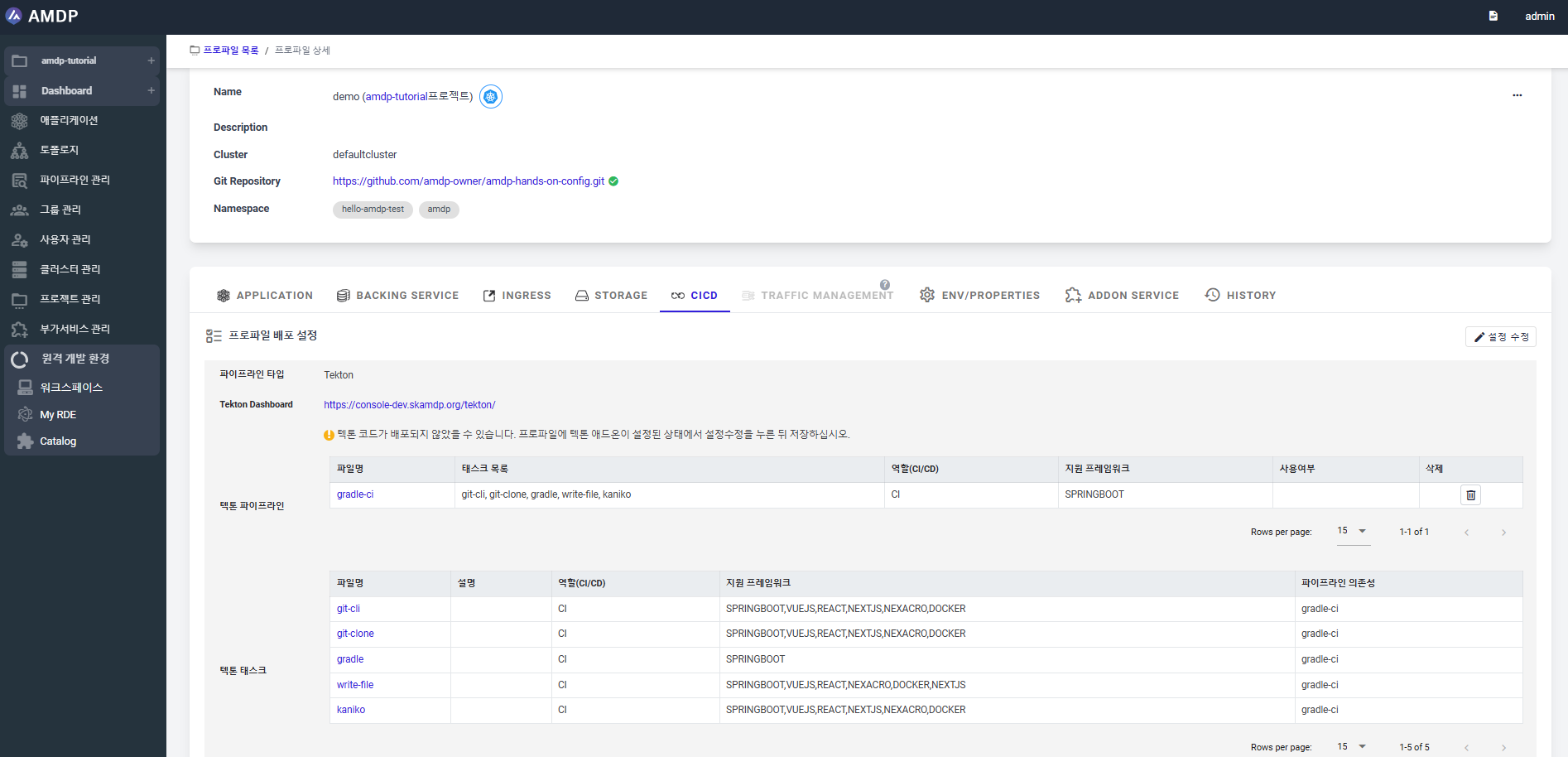
Create a Profile and Profile deployment setting
Create a Profile
note
Each project can be linked to one or multiple profiles.
To create a new profile, users have to find an existing project that this new profile will belong.
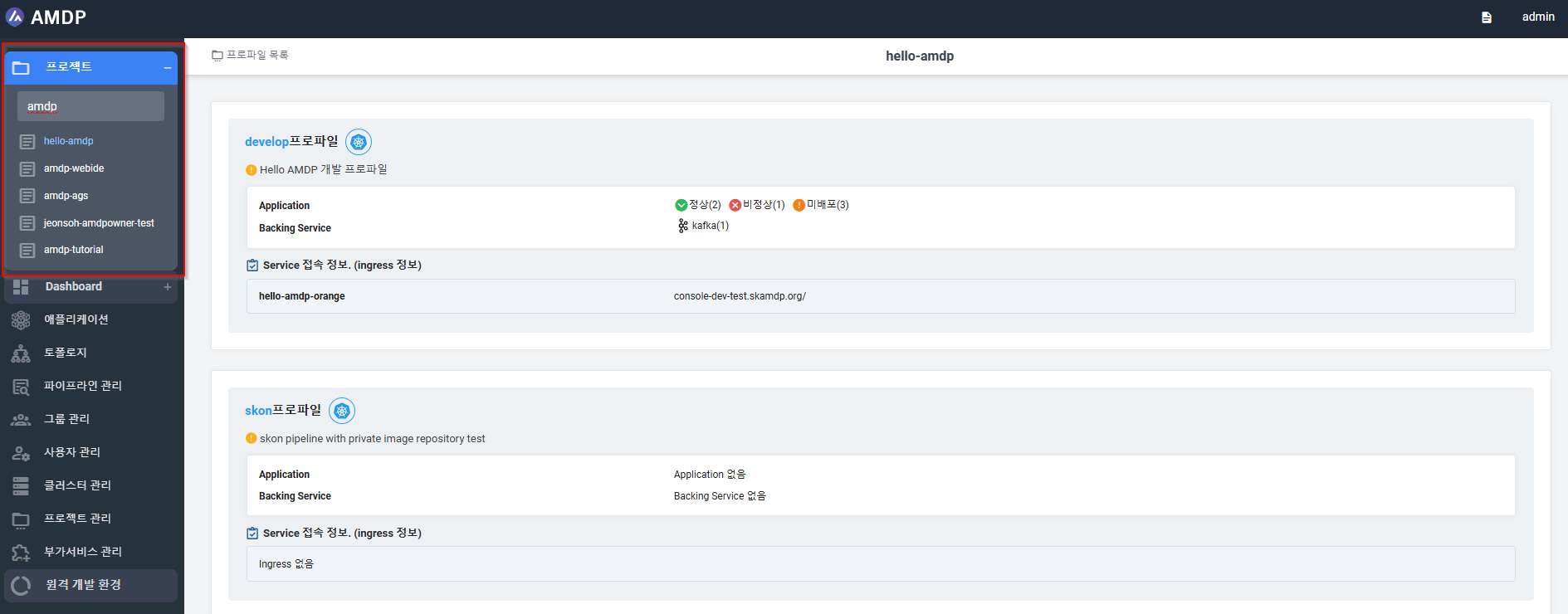
- Find a project to have a new profile on the menu bar. Here, we search for the project created previously amdp-tutorial:
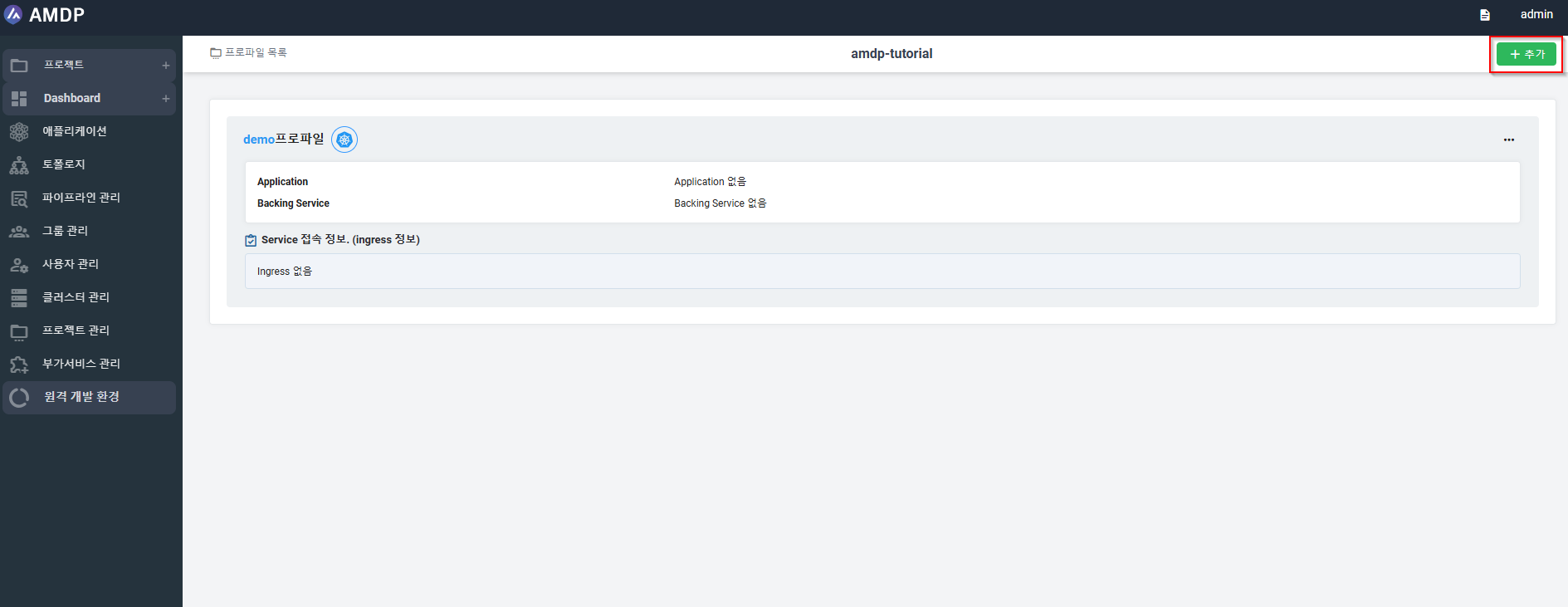
- Select project amdp-tutorial, the Profile list page is displayed. On the Profile list page, select ADD button:
The Profile creation page is displayed with parameters required:
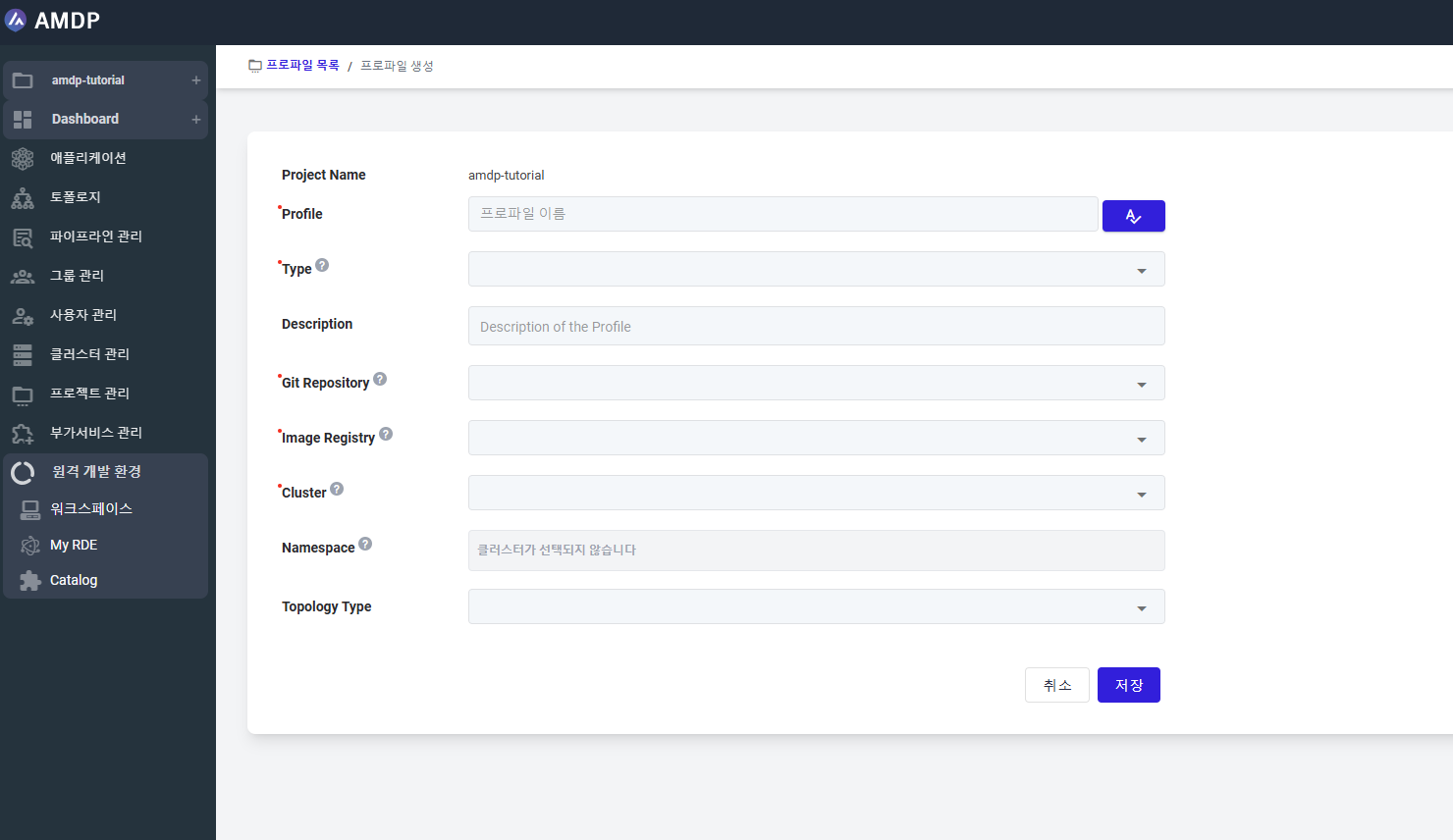
- Input or select the data for the parameter below to create a new Profile:
- Profile name
- Type
- Description
- Git Repository
- Image Registry
- Cluster
- Namespace
- Topology Type
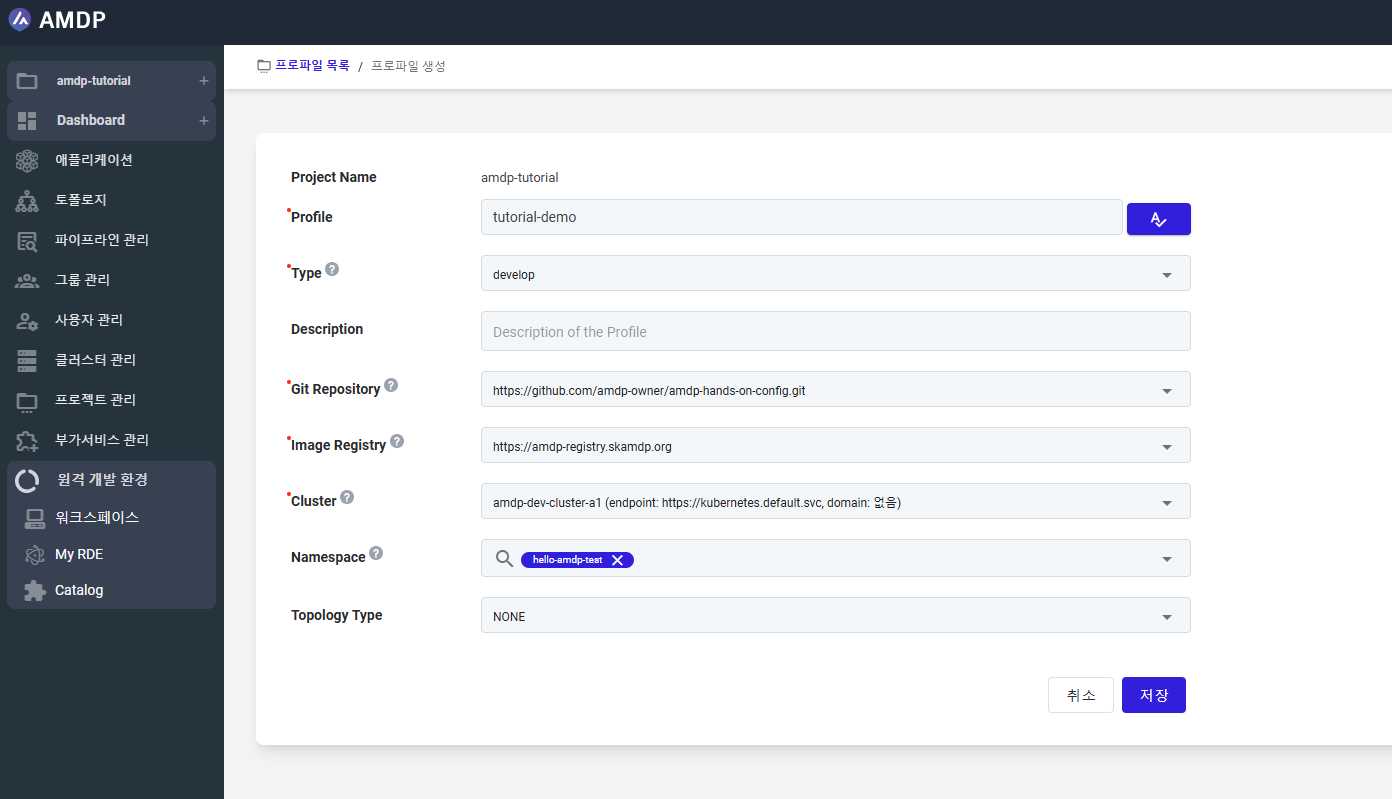
- Click on SAVE button to store new setting for a profile tutorial-demo. Once the profile is created, it is displayed on Profile list page.
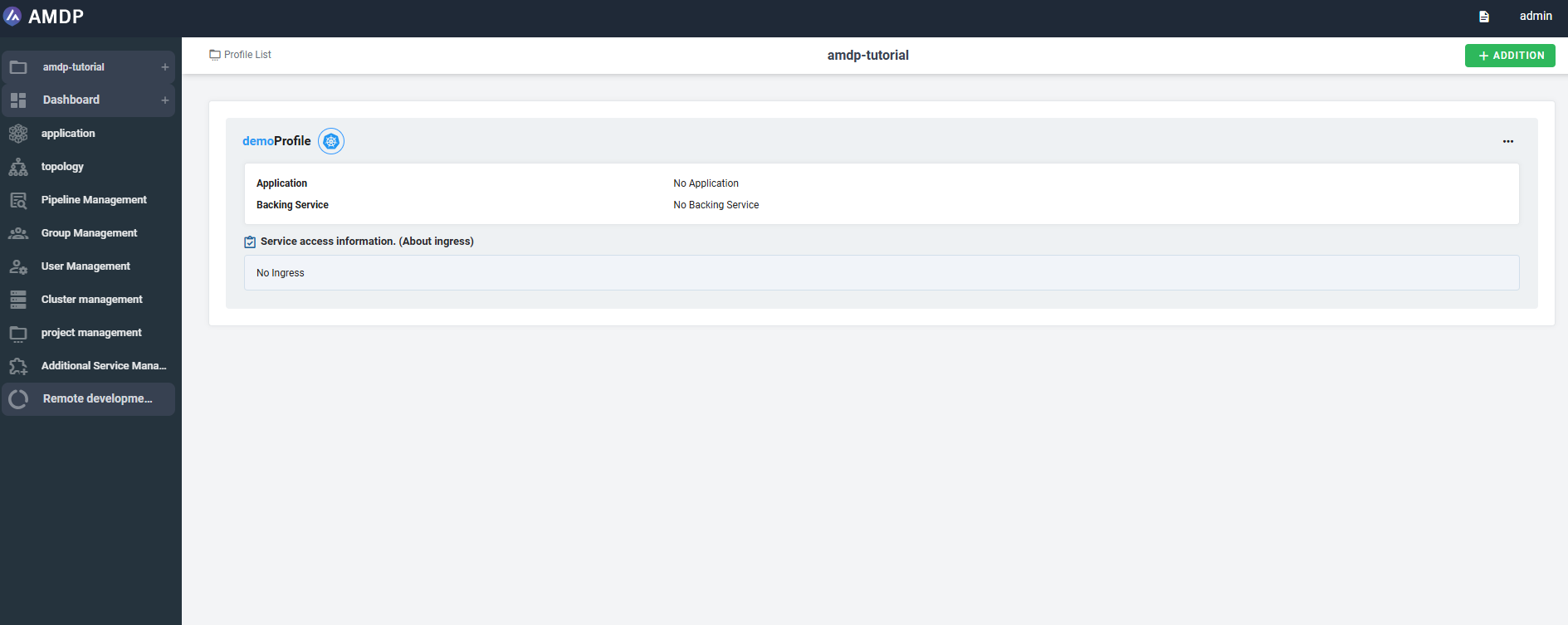
Profile Deployment Setting
Create Pipeline
- Access to CICD tab, click on ADD button
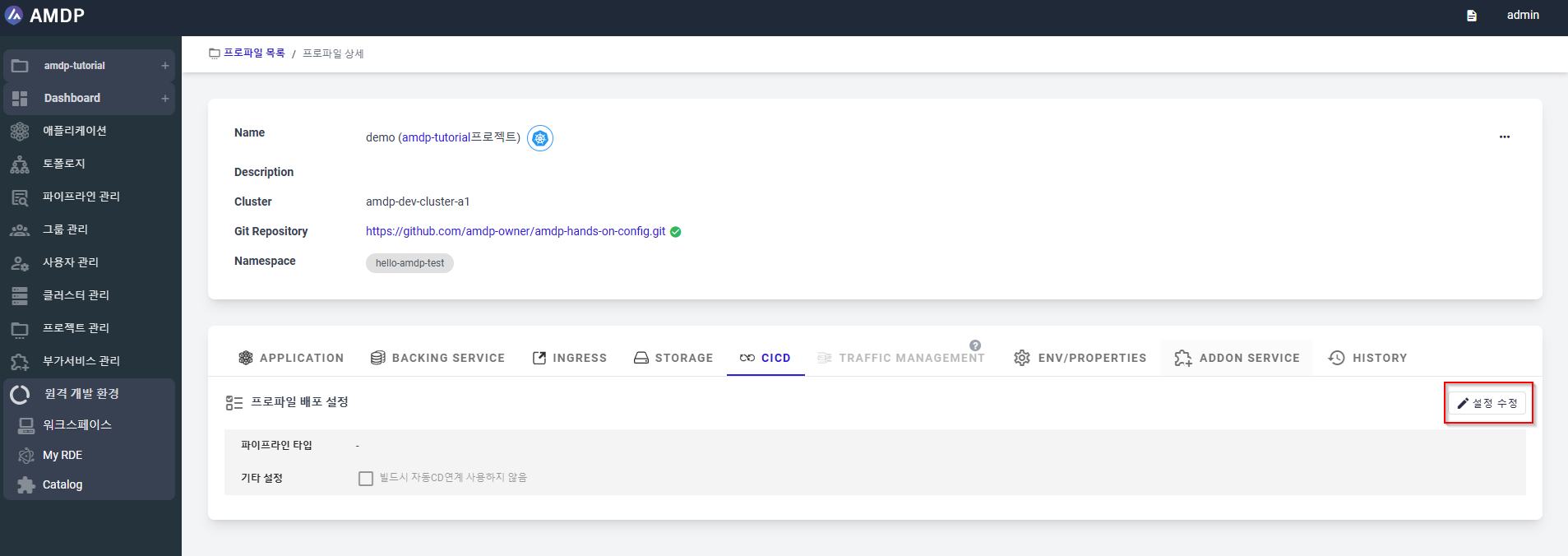
- Select Pipeline Service Type from the dropdown list:
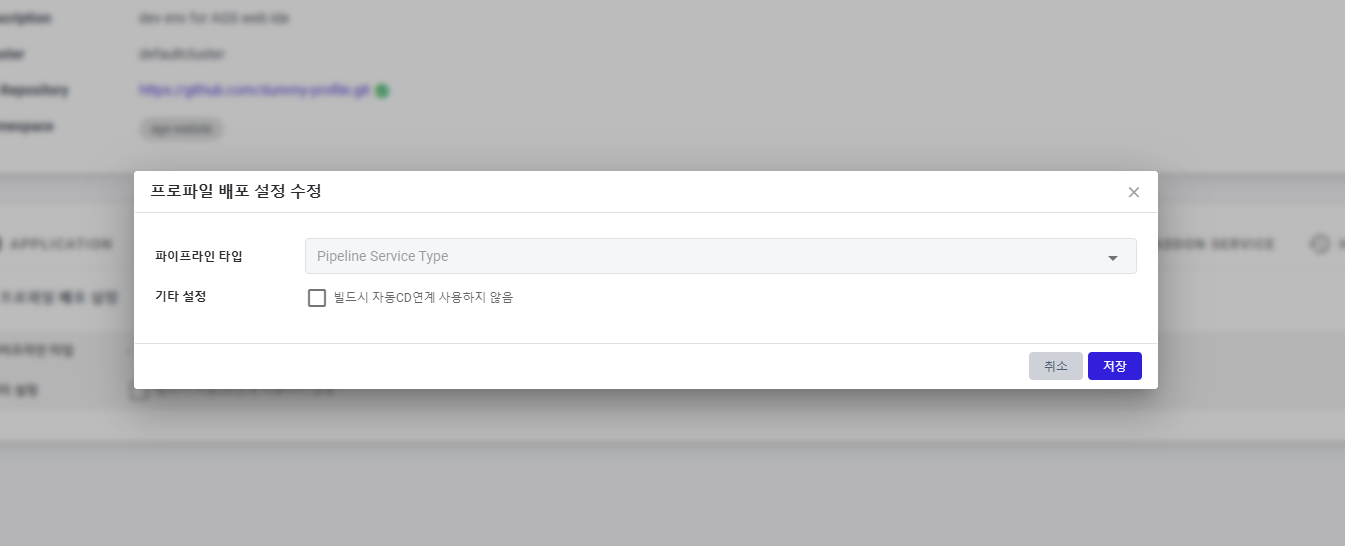
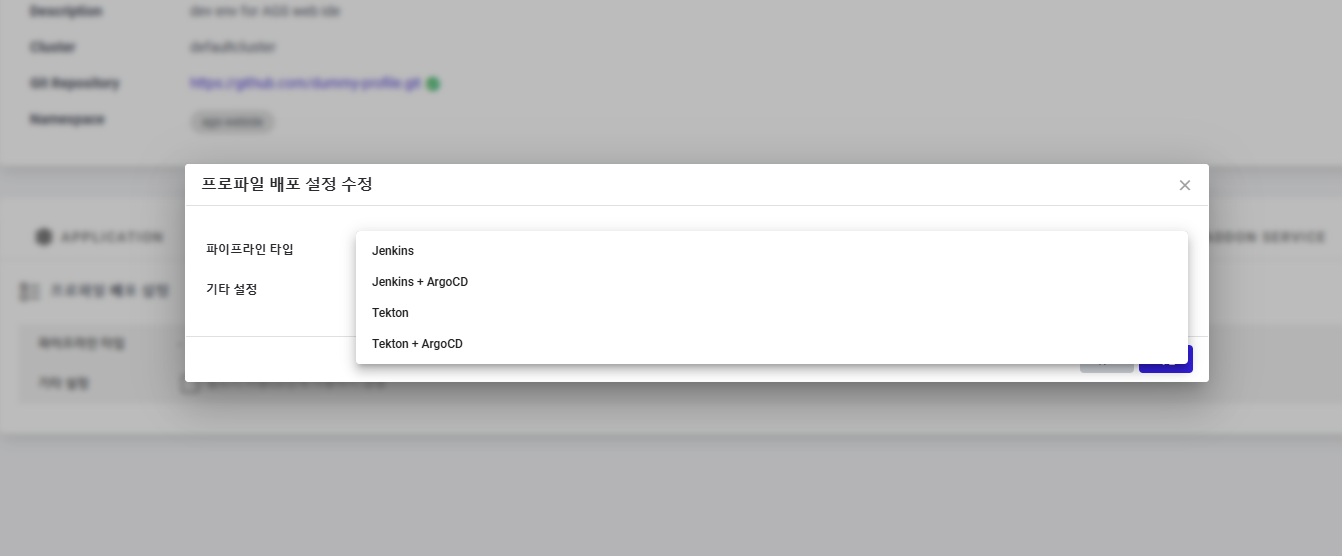
Here there are 4 types of pipelines to be selected:
- Jenkins
- Jenkins + ArgoCD
- Tekton
- Tekton + ArgoCD
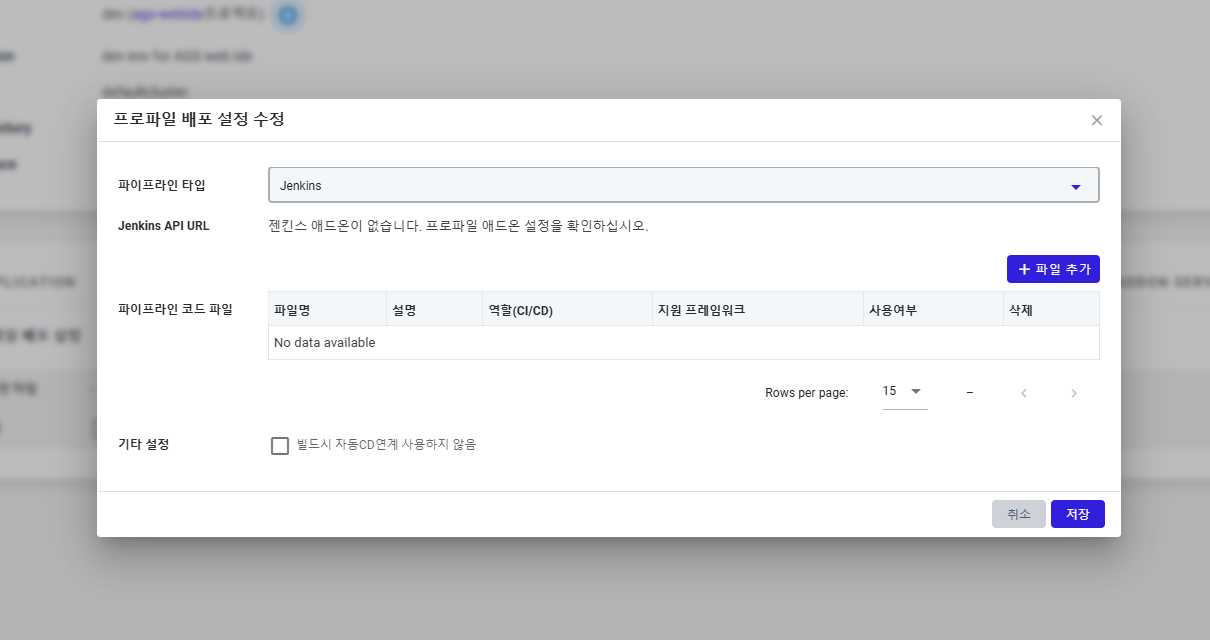
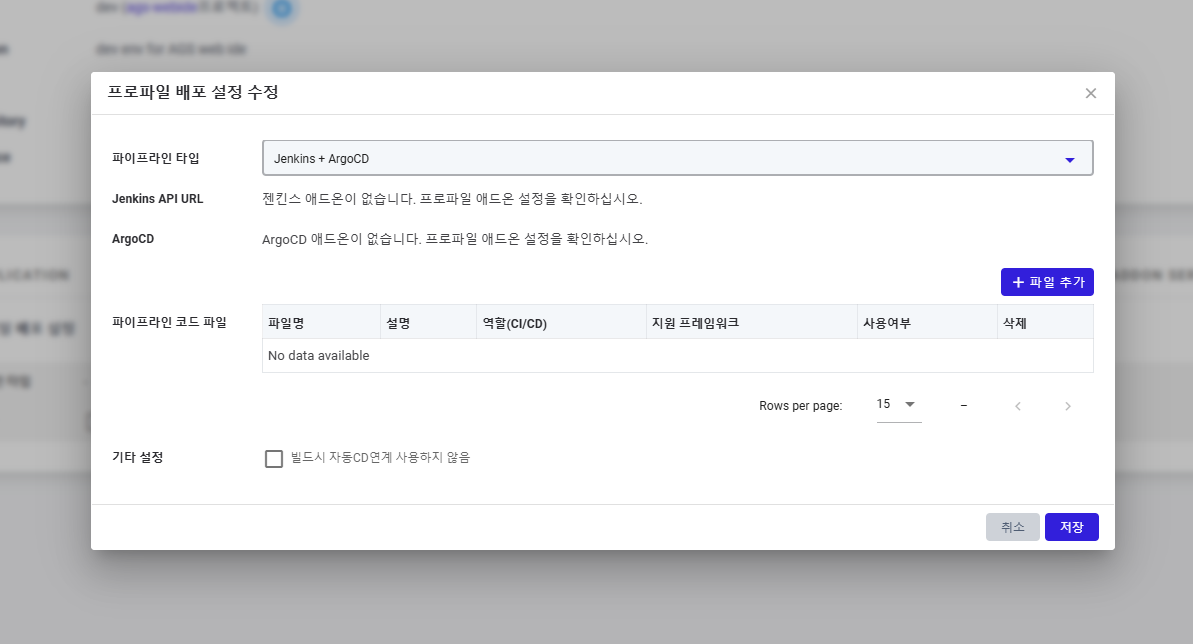
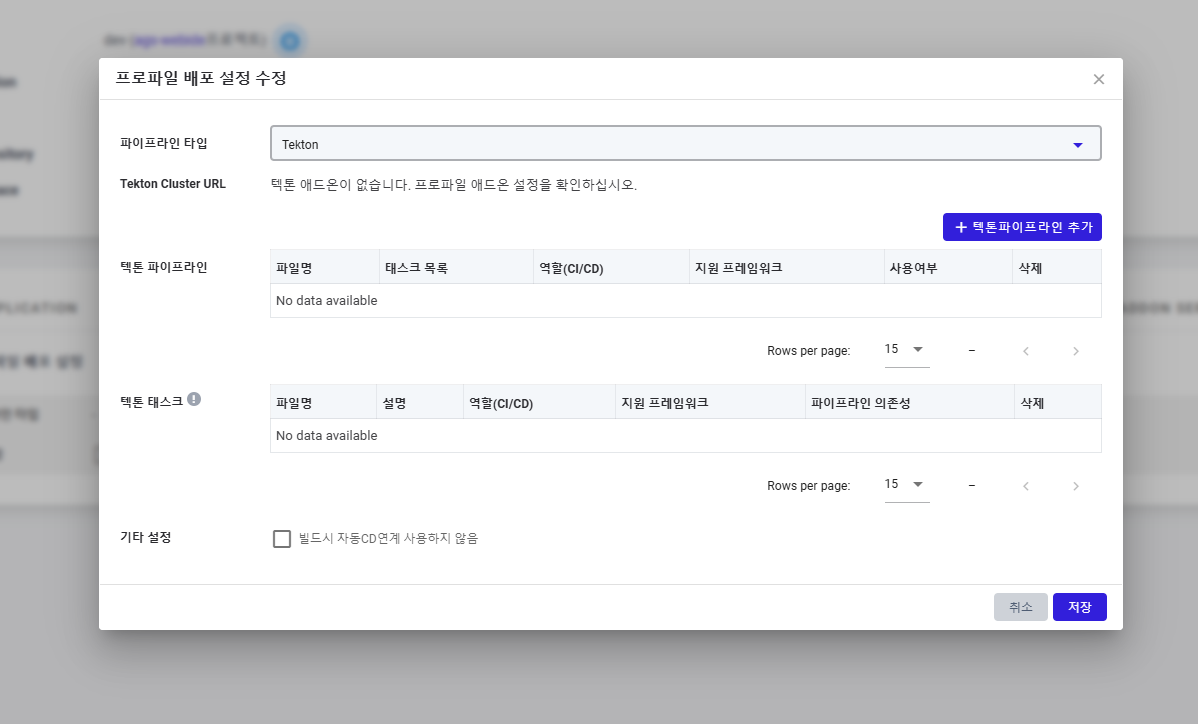
Depending on the specific pipeline type selected, the associated setting parameters will be shown:
Jenkins:
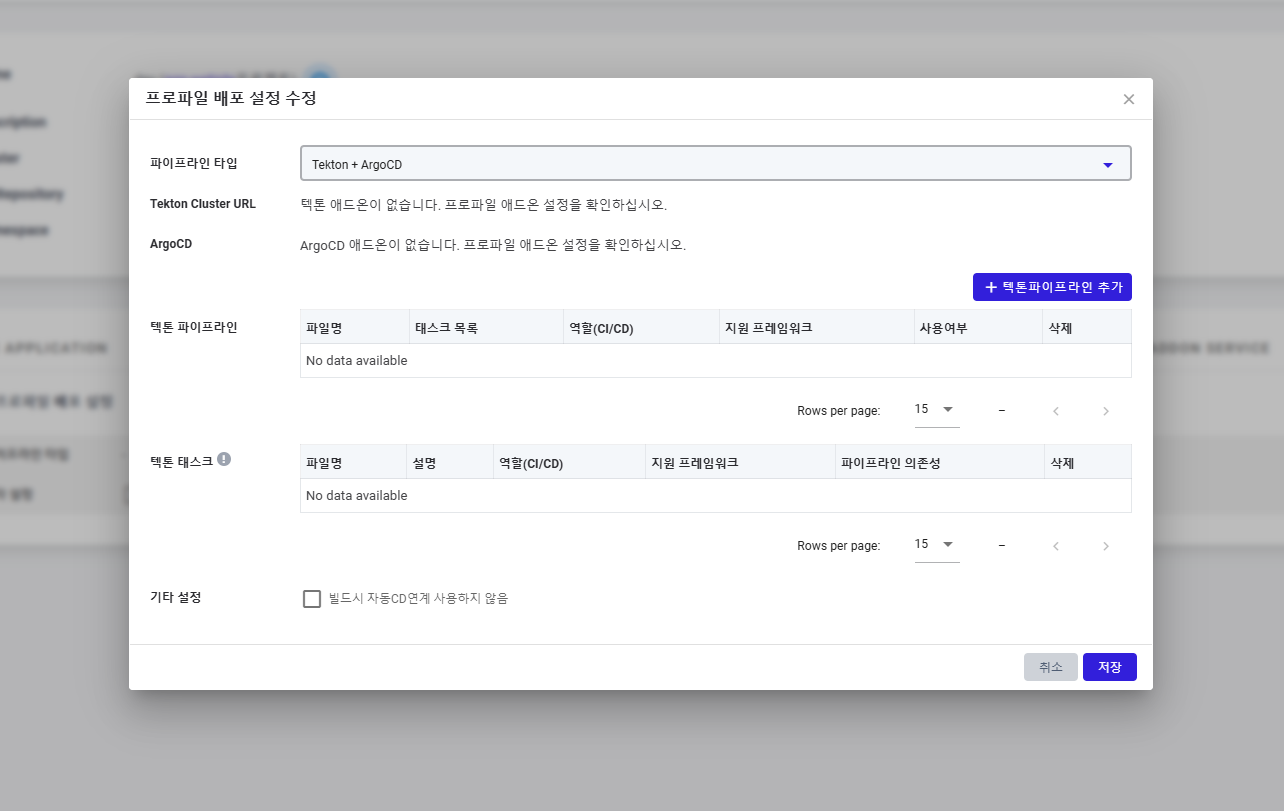
note
All of pipeline types has the same Other Setting with option of not run CD automatically when building CI
- Select the Tekton pipeline from the list by click on the icon “+” at the end of each Tekton:
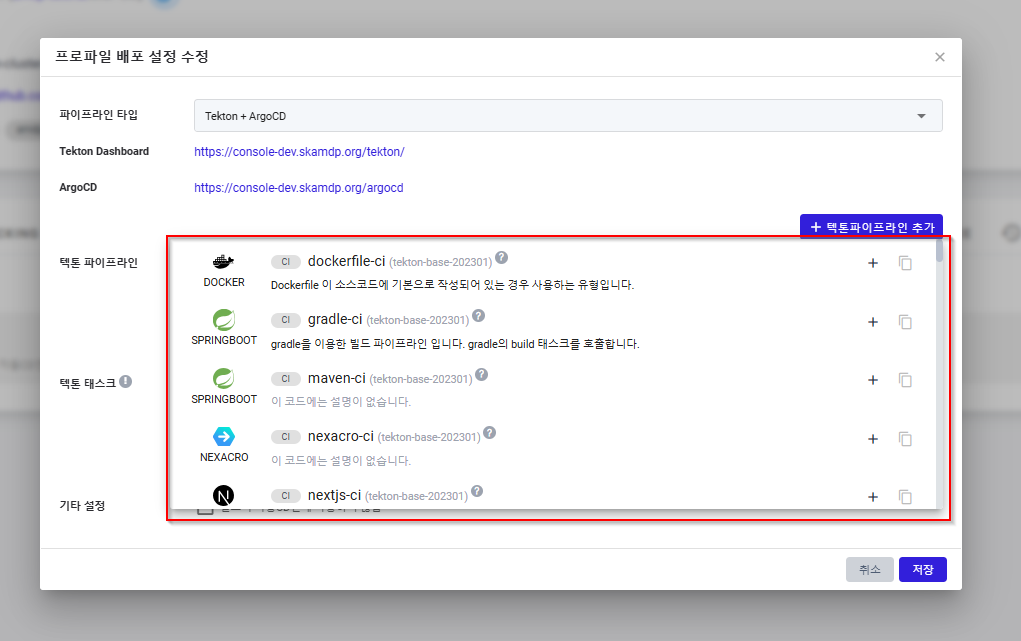
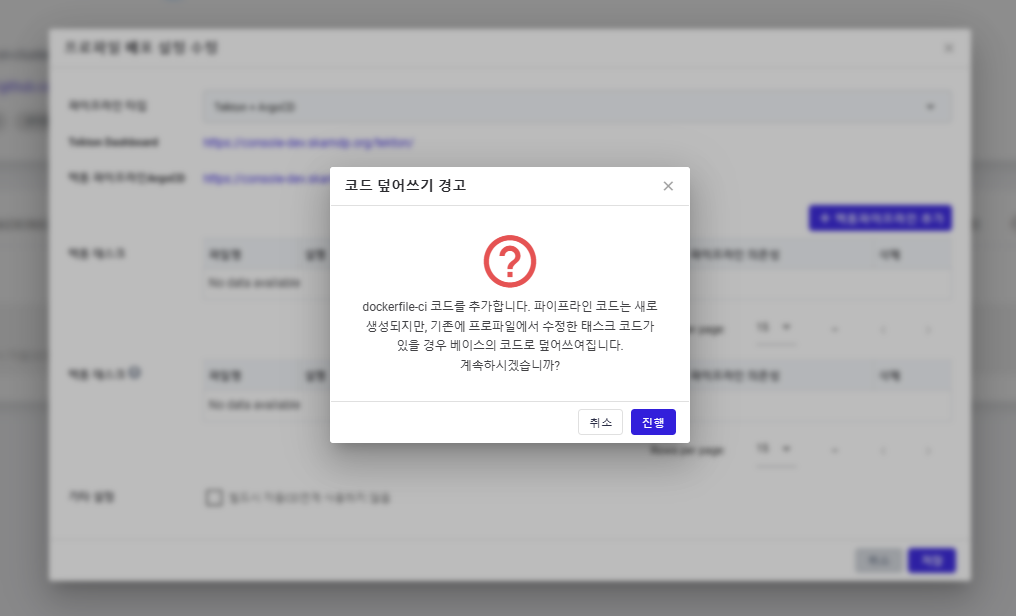
then confirm on the popup:
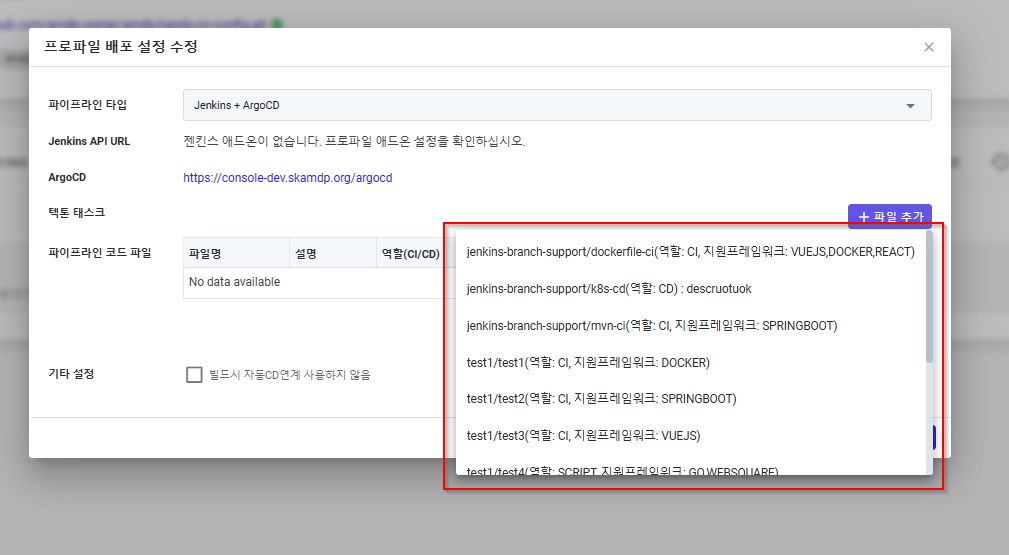
Add for the Jenkins files if Jenkins is selected as pipeline type:
note
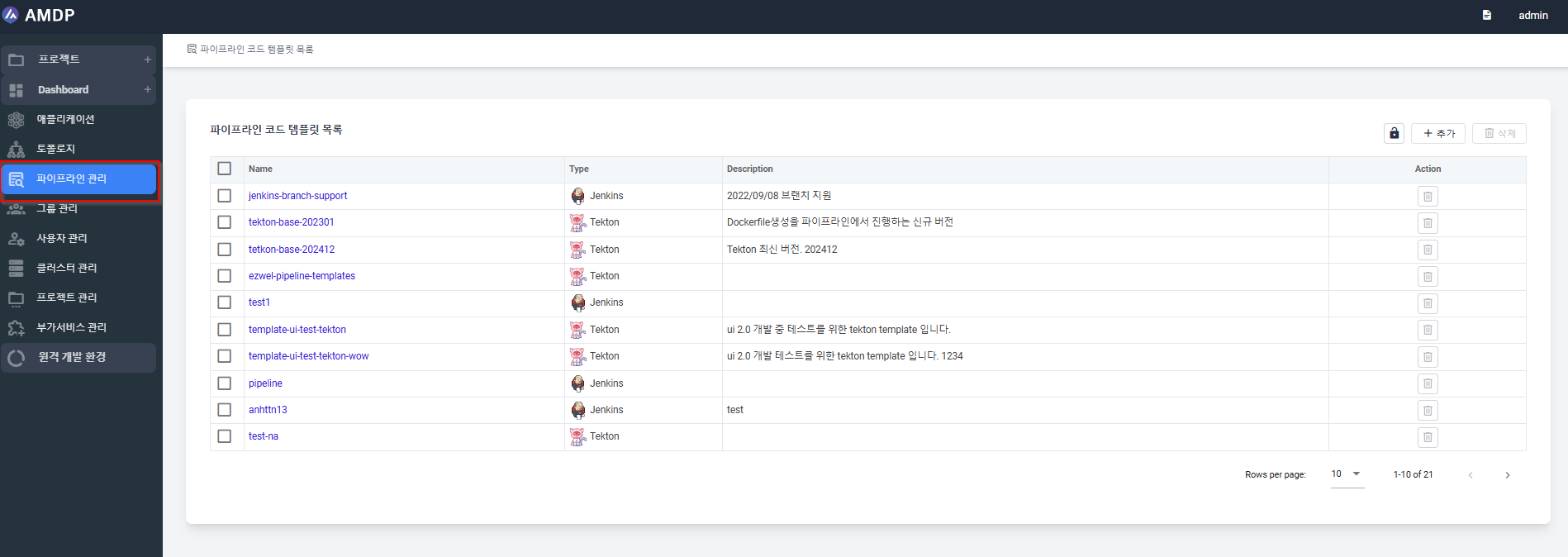
The list of Tekton or Jenkin files are taken from the Pipeline template. which can be viewed in detailed in the Pipeline template list page as following:
- When the CICD registration is completed, the detailed information of Profile deployment setting is displayed: